
Step 1 –Prepare Device to Install Pixel
1. Select the search icon and click the search bar.
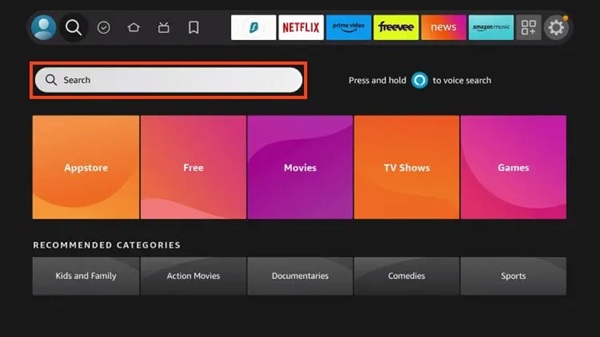
2. Type Downloader and search for the app from the developer: AFTVnews.com
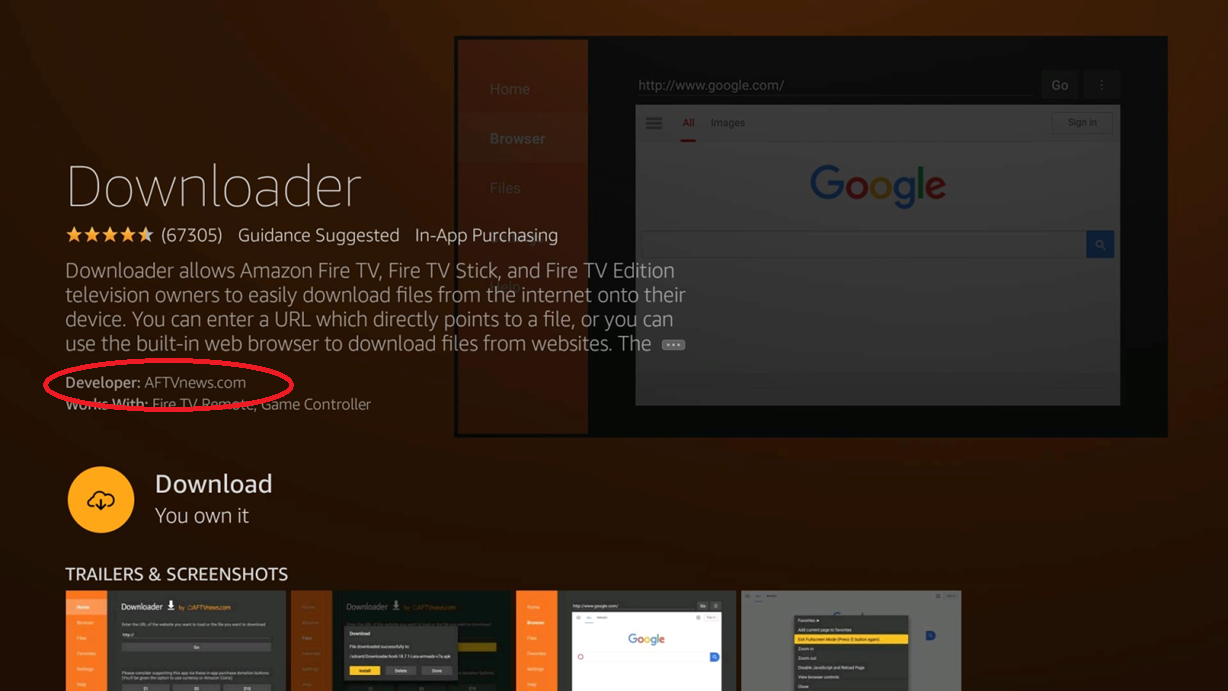
3. Click On it.
4. Click Get, or Download.
5. Wait for Downloader to install.
6. You will then see “Ready to launch!” message in the corner of your screen, dont open it yet.
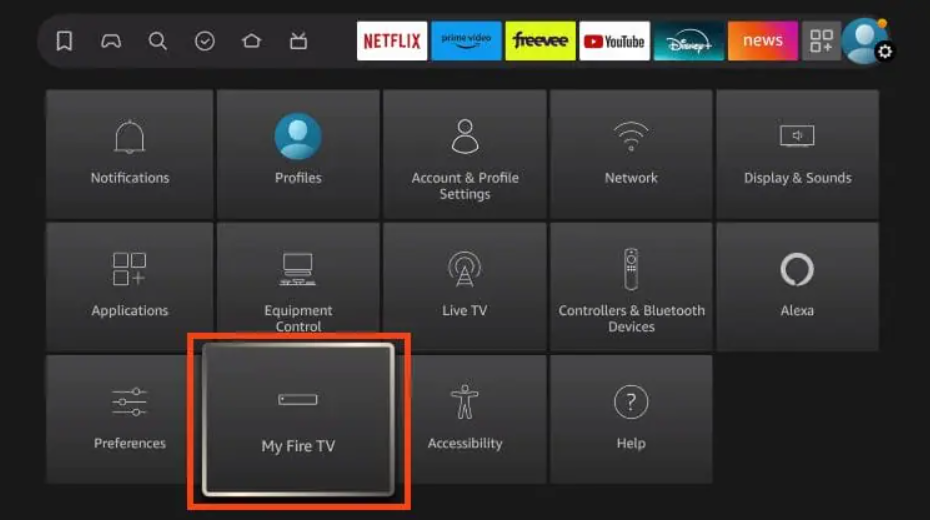
7. Go back to your home screen and open Settings. Click My Fire TV.
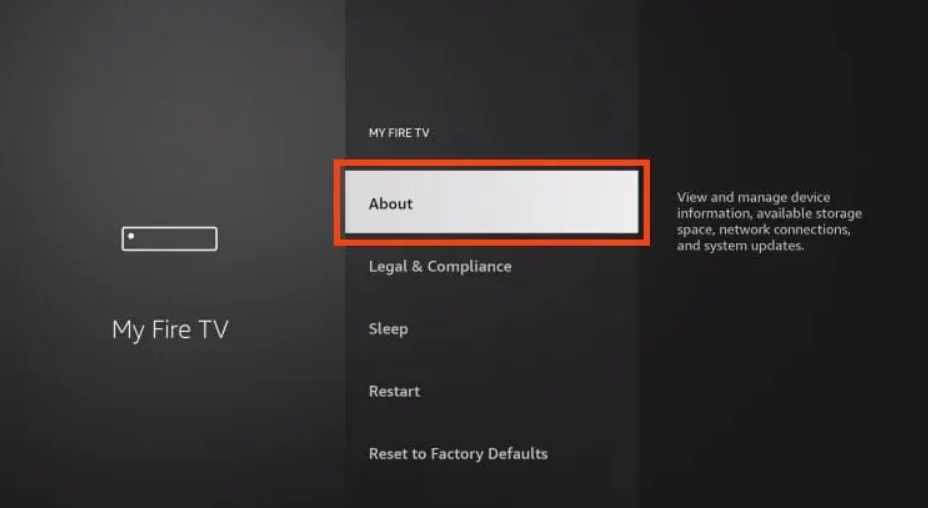
8. Select About.
9. Hover over Fire TV Stick (or other device name) and click the select button on your remote 7 times
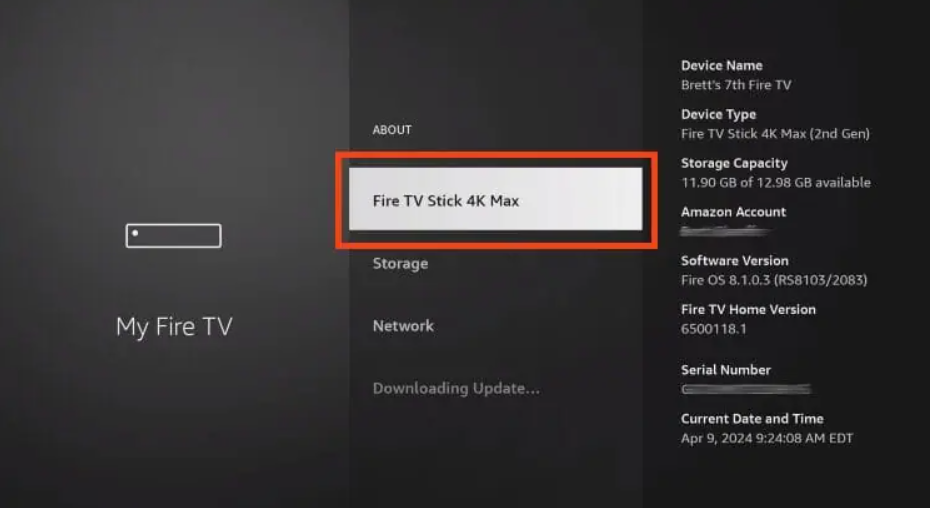
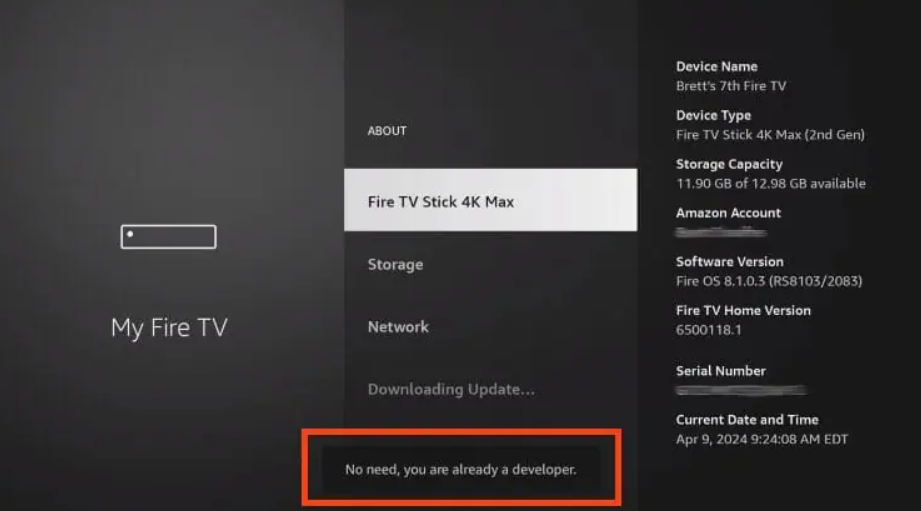
10. You will then see the message “No need, you are already a developer” which means developer options have been enabled.
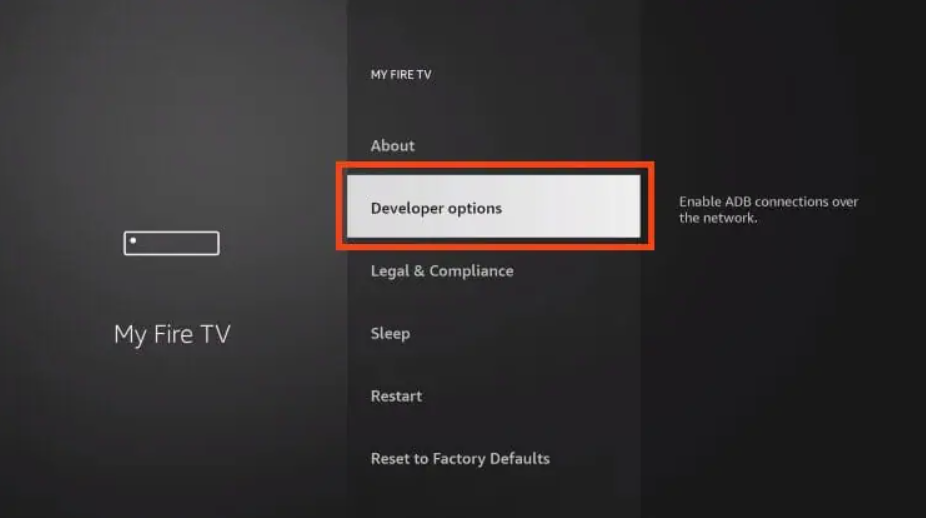
11. Click back to return to My Fire TV and Developer Options is now available. Select it.
12. Click Install Unknown Apps.
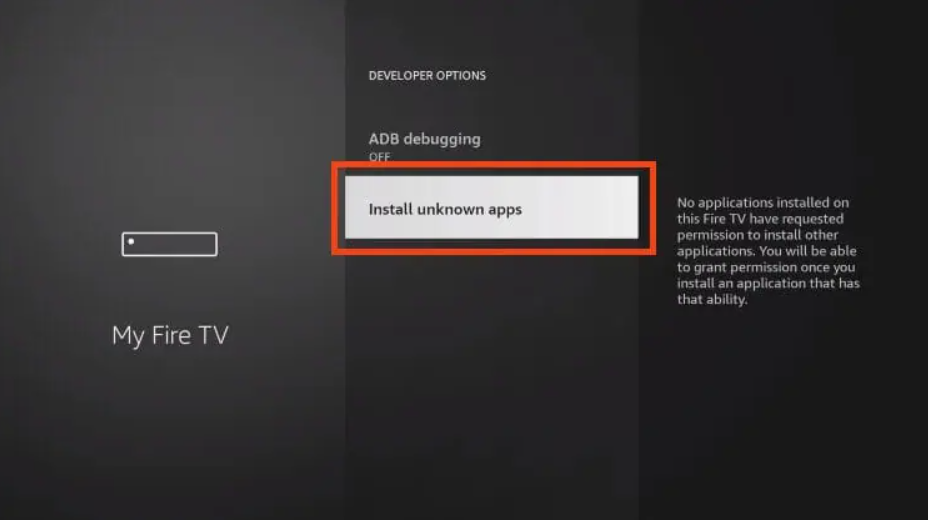
13. Find Downloader and turn Unknown Sources ON.
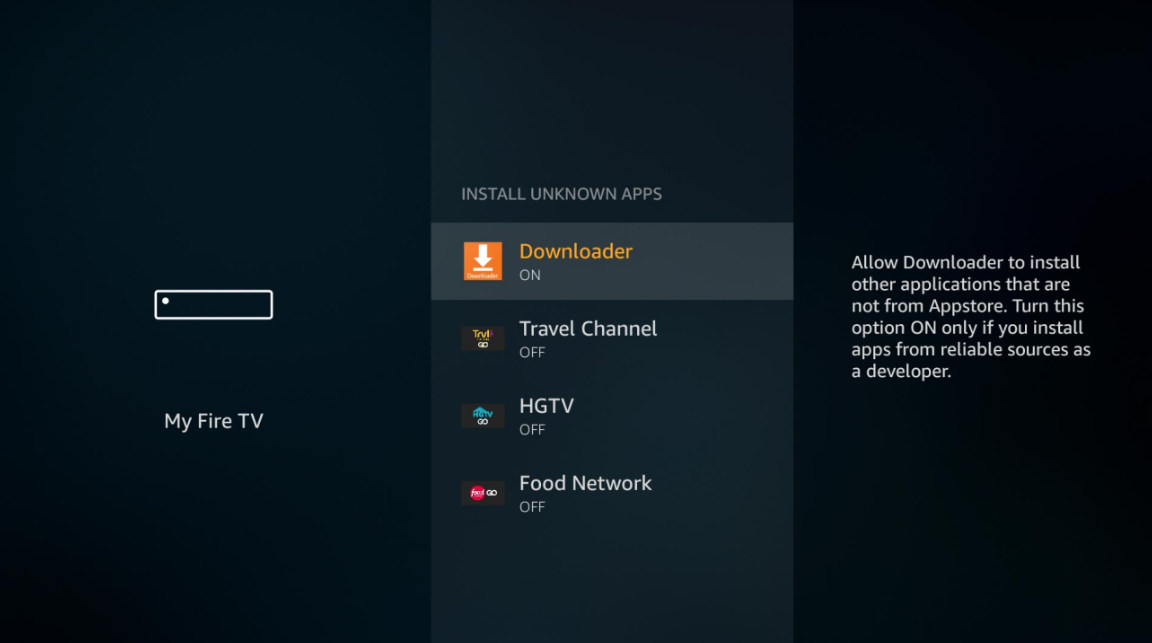
Those with older variations of Fire TV Stick can find Unknown Apps within Settings.
Step 2 – Install PIXEL APK
Now that our device is prepared, we can install Downloader via their official app.
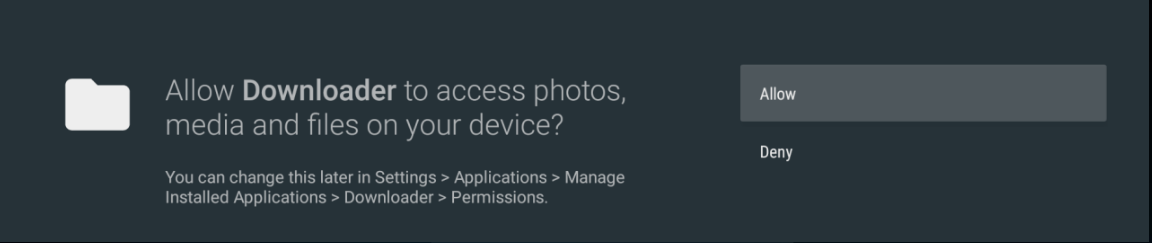
1. Open the downloader app and allow it to access media so it can download files.
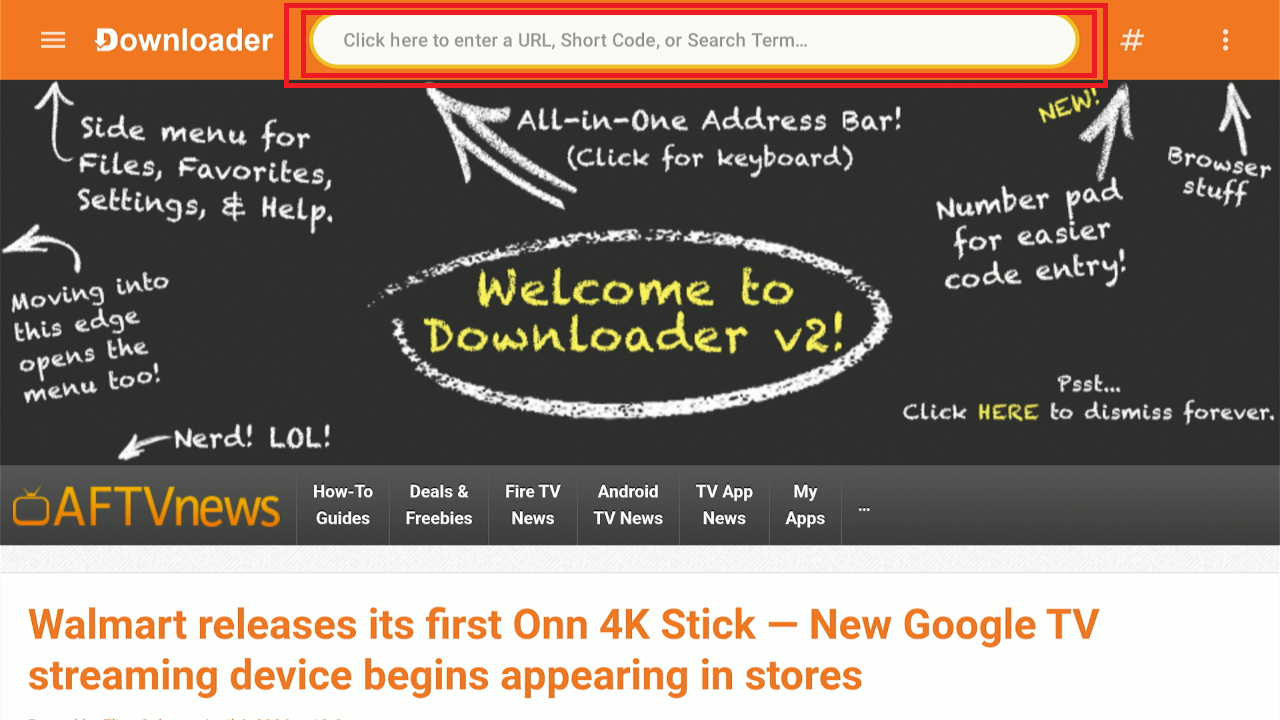
2.Click On enter URL, short code or search term
2. Here, enter the code 8747094 or the url http://pixeltv.me/pixeltv41.apk
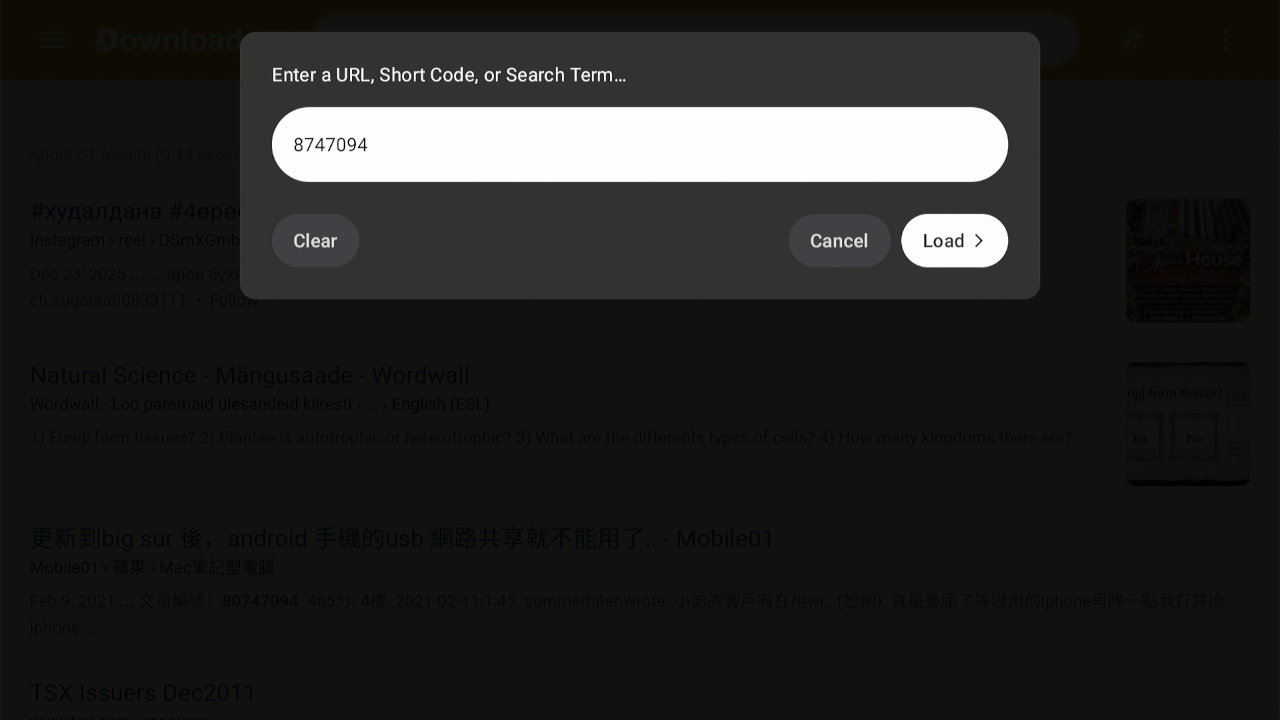
3. Wait until it loads in case you entered the code.
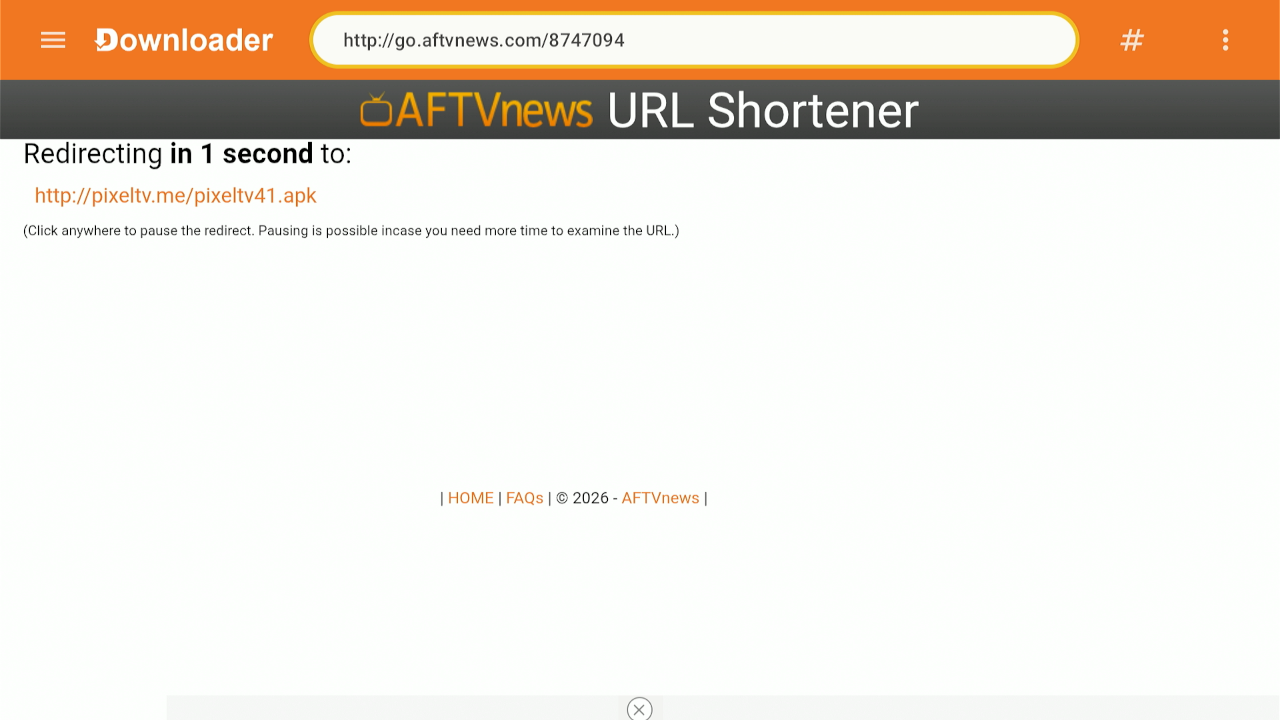
4. You will get the following screen. Wait a minute or so:
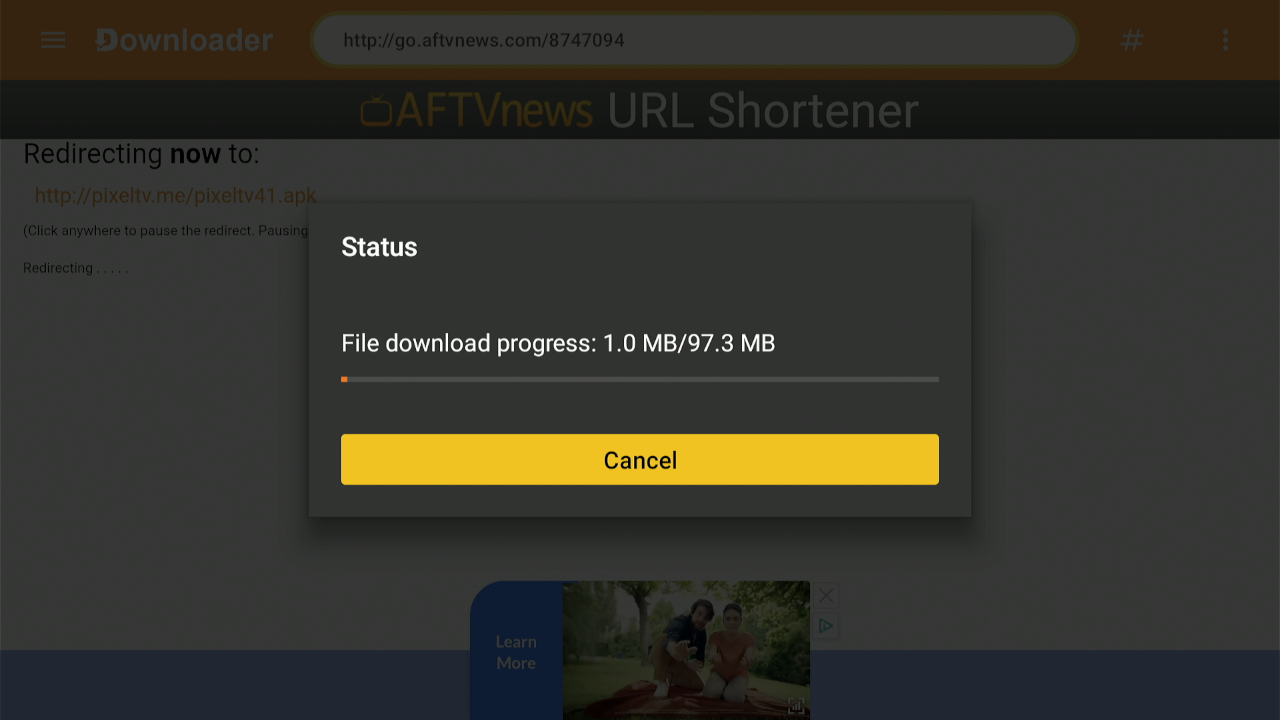
5. Wait for the app to install.
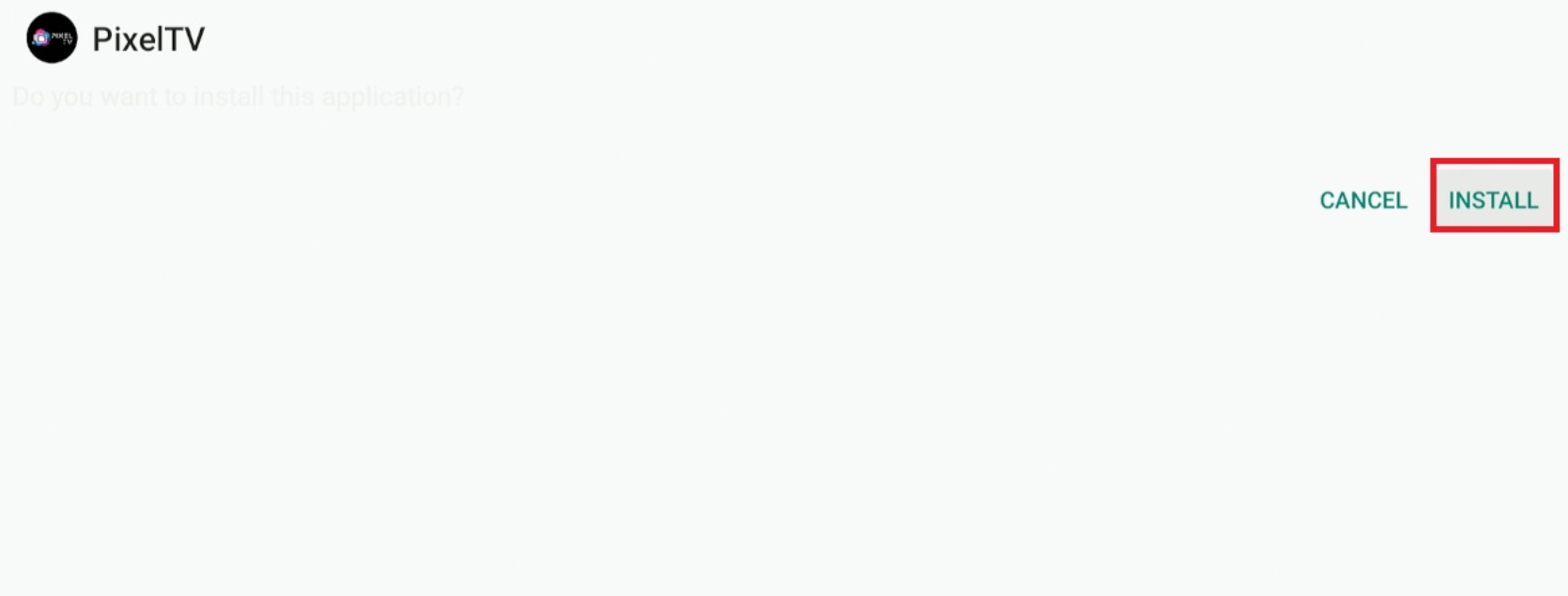
6. Click Install.
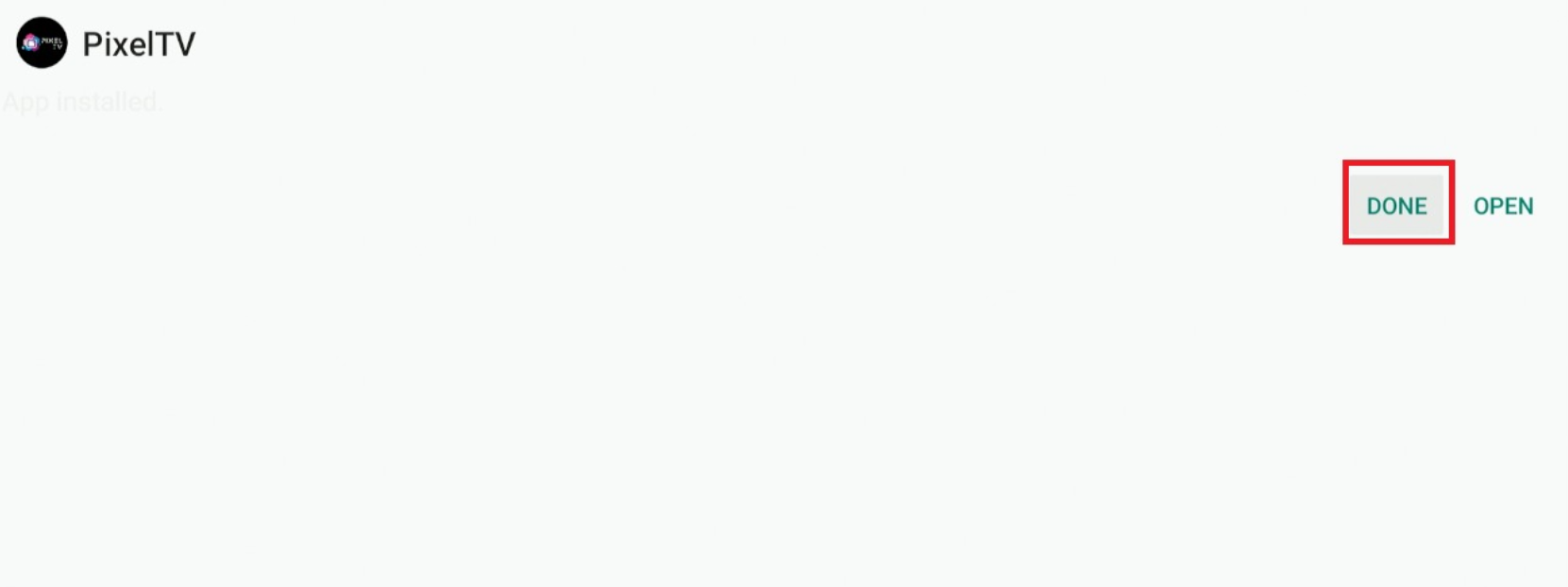
7. Choose Done.
8. You may delete the app file
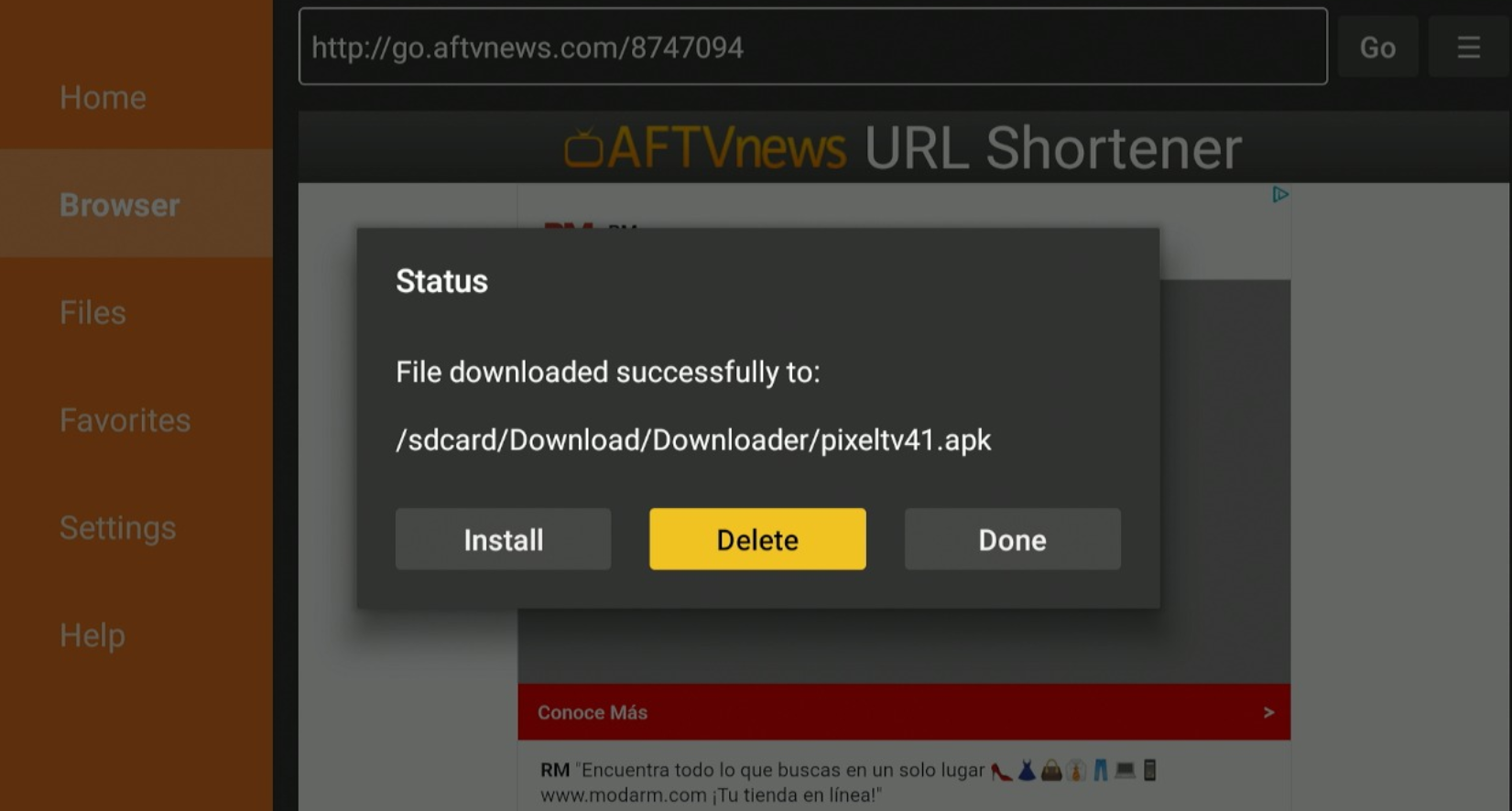
Installation is now complete. However, you will likely want quick access to open PIXEL so we will show you how to add it to your home screen.
Step 3 – Move to the Front of Your Apps List
These steps are for an Amazon Firestick device, however, those with Android TV/Google TV will likely follow the same instructions to add it to your home screen.
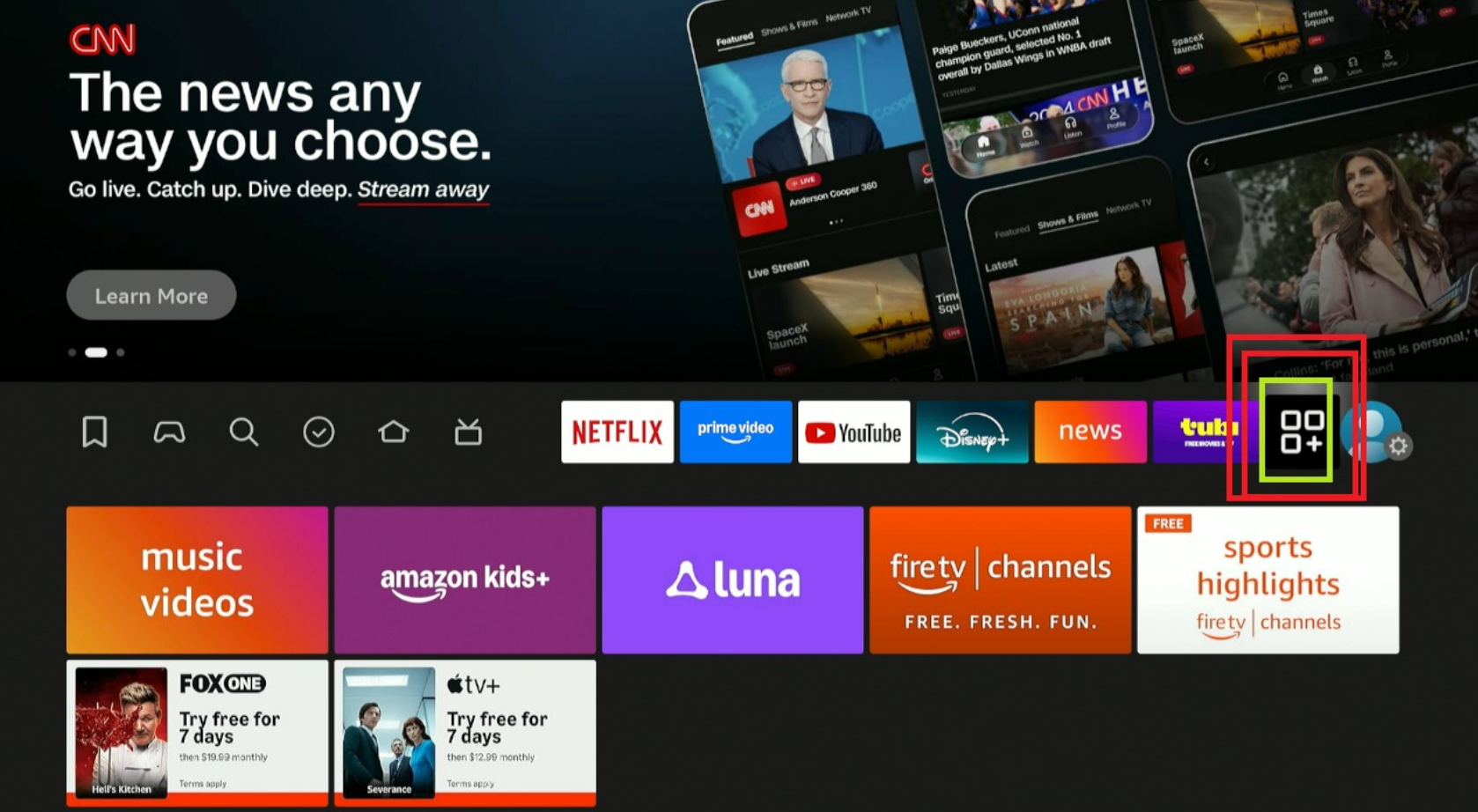
1. Open Your Apps list to find PIXEL and hover over it. Click the Menu button on your remote
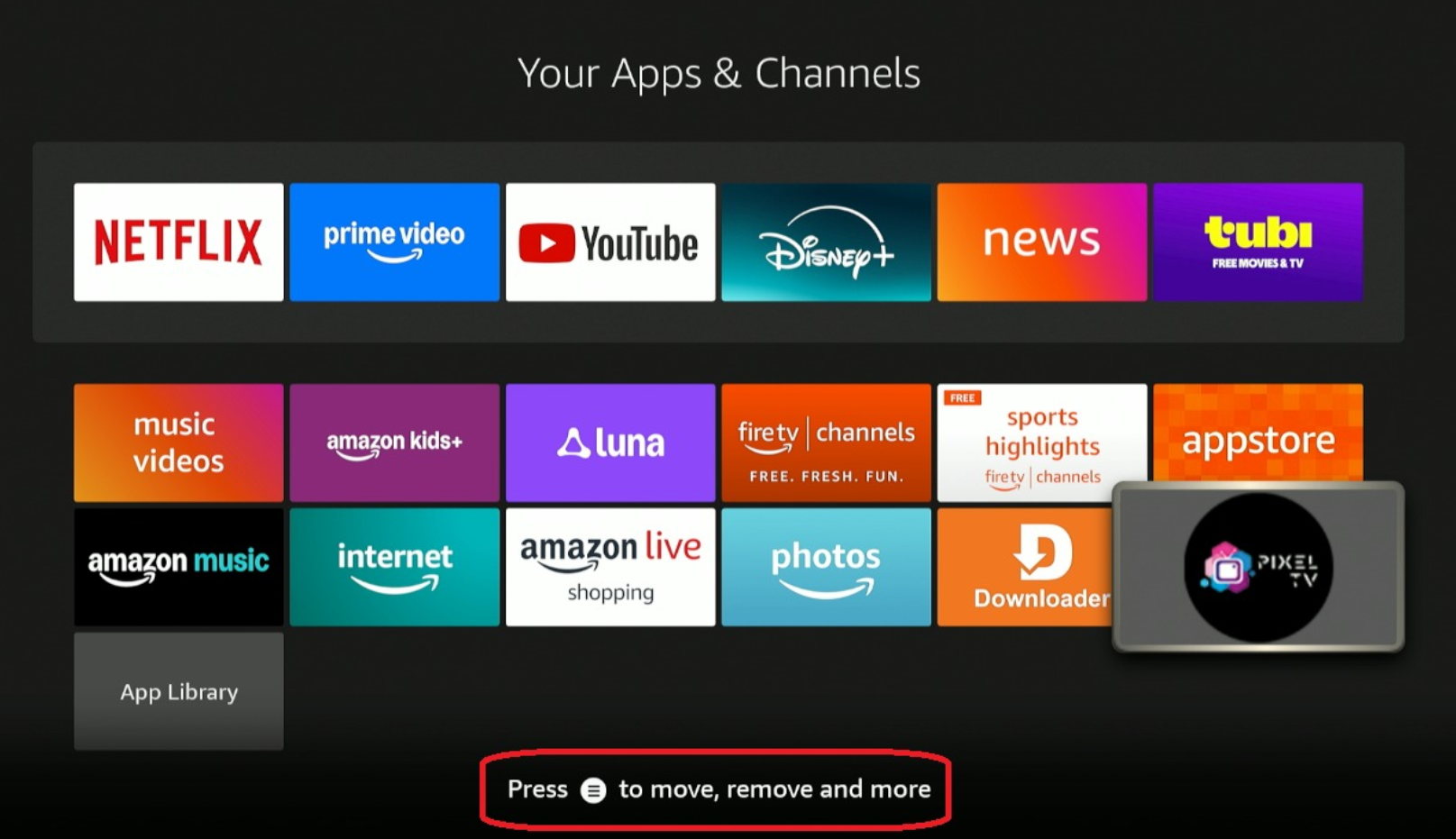
2. Choose Move.
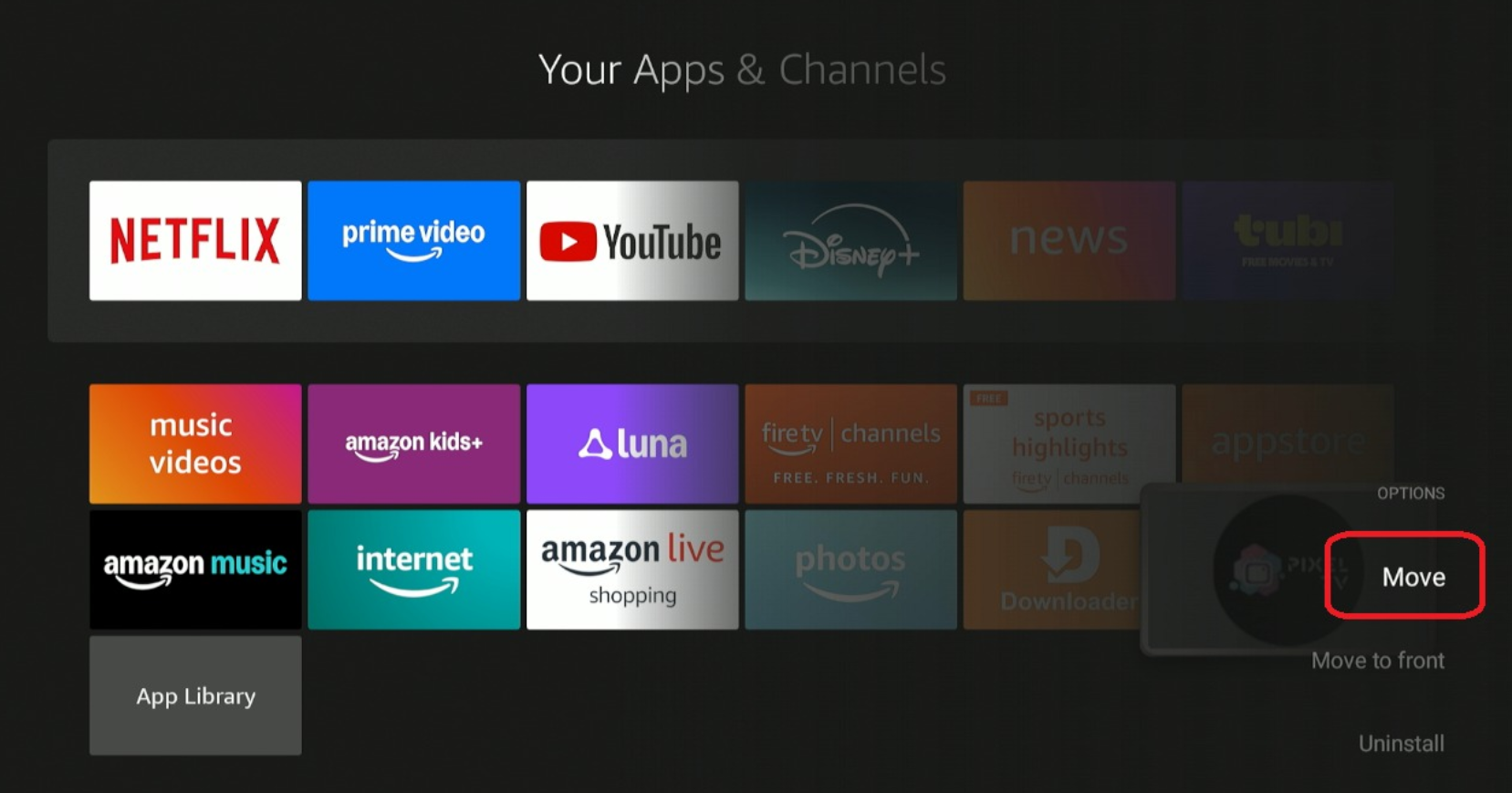
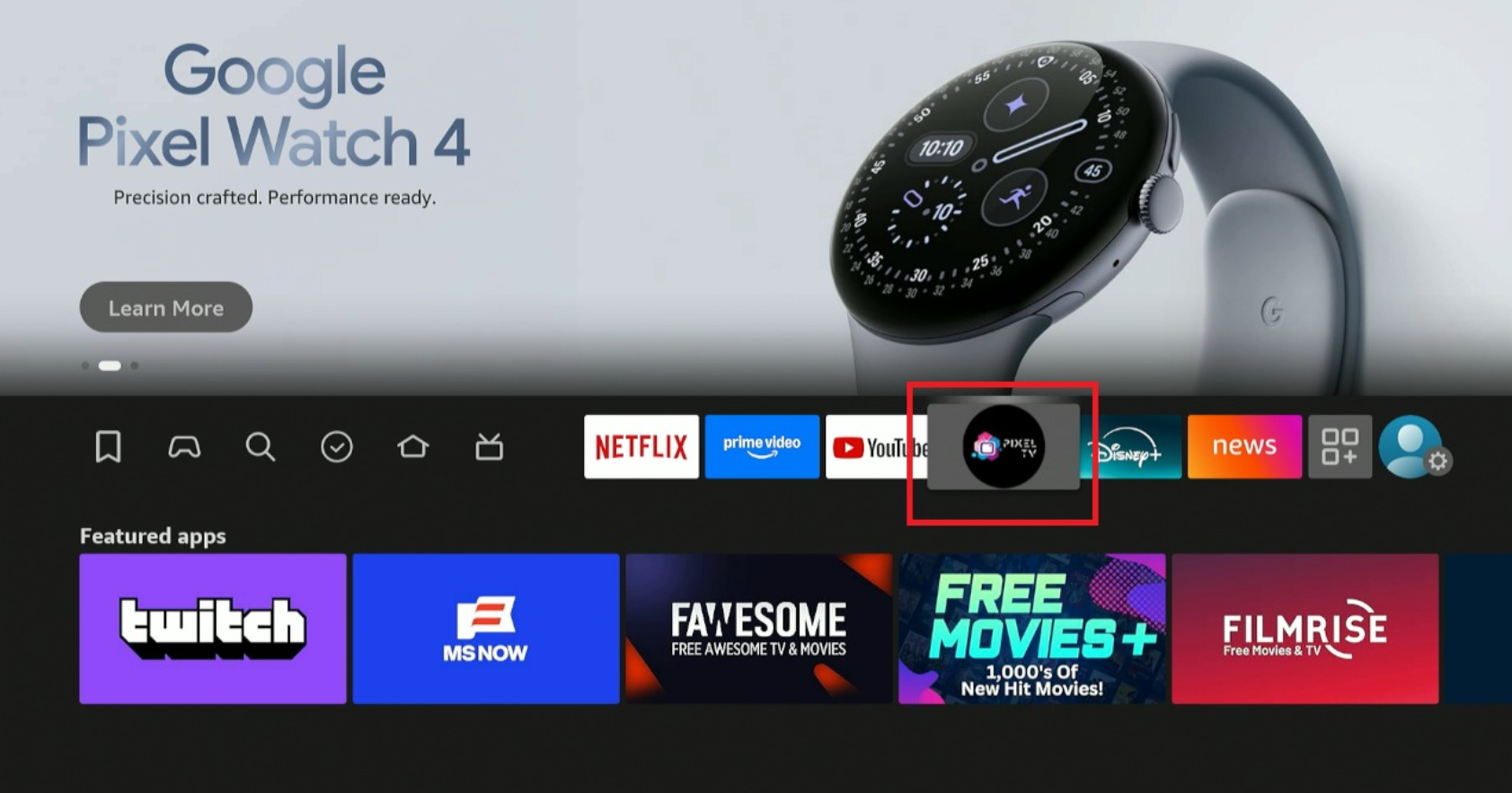
3. Drag PIXEL to the front of your list and drop it.
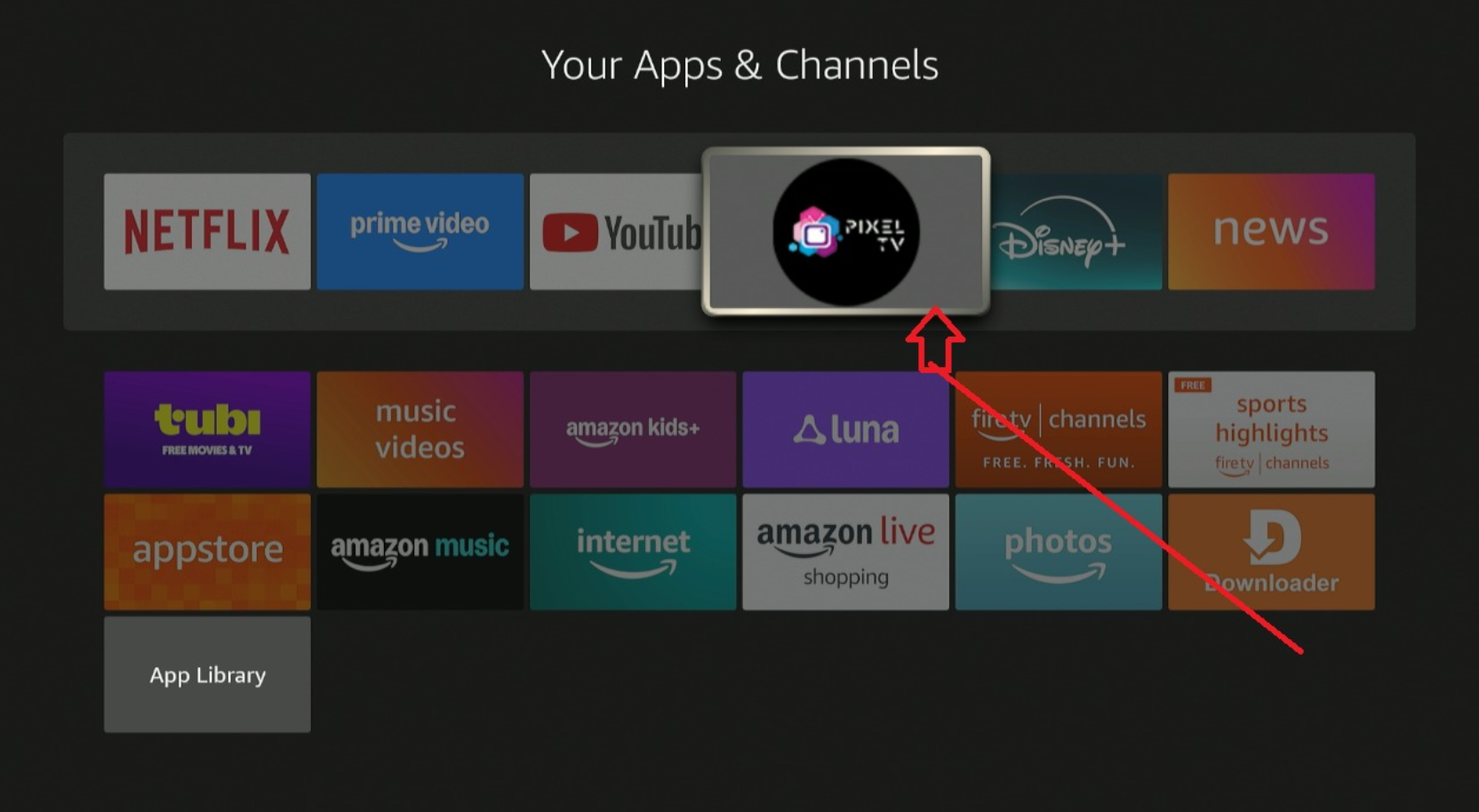
4. You will now be able to access the app from your home screen.
Continue reading for more information including channels provided, features, and more.